In this post I’ll show you how to export a WordPress blog, import it into Obsidian, and finally turn it into a website using Hakyll.
This conversion has the following features/requirements - some are easily achieved, others require custom implementation in code:
- A reasonable folder structure in Obsidian, with useful frontmatter fields
- Wikilink support
- Support for embedded images
- Support for tags
- Archives for year and month
- Support for Obsidian’s callouts
This post is split into two sections. First, why I moved from WordPress, and why these technical choices. After, I’ll show you the steps needed to do this yourself. Note that this requires some technical skills to go from WordPress into Obsidian, and understanding of Haskell to go from Obsidian to Hakyll.
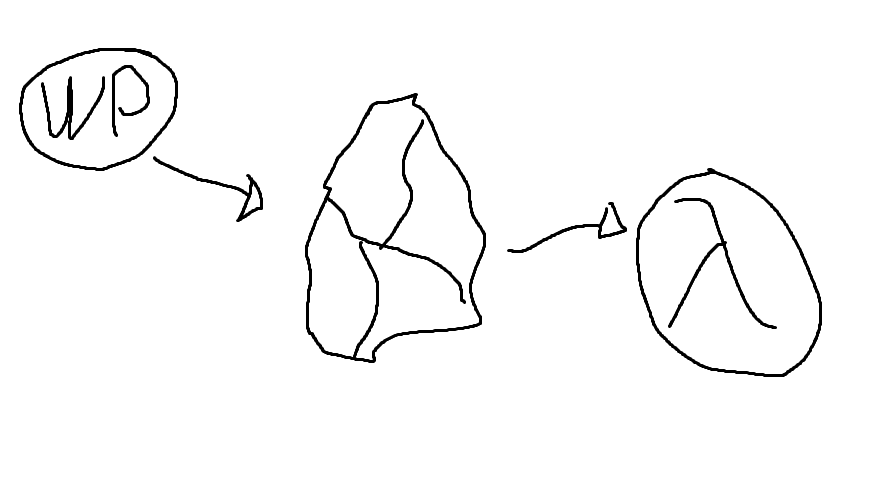
Background
It’s been 9 years since my previous post. It has been 18 years since I started using WordPress here. I never intended to take such a long break from writing, it just happened as these things tend to do.
I thought it would be fun to write again, but the old blog felt old. I had also started using Obsidian a lot for keeping notes on things. So I thought: can’t I just use Obsidian to write articles/blogposts as well? Static site generators had also become popular, and I knew I could use them to build a site from Markdown files.
I’ll have to write about what makes Obsidian an excellent writing tool another time - but if I can write in Obsidian and generate a site from that, that would be ideal.
Requirements
Since I don’t want to lose any of my old content, the first requirement is I need to be able to import all my blog content into Obsidian. This means I would somehow have to dump all the old content from WordPress into Markdown files. My initial thinking was “I guess I’ll just dump it from MySQL?” which would have been a pain, but thankfully I had the common sense to search first, as I found a useful Node.js based tool that can do the work. It did require some changes, more on which in the technical detail part of this post.
I also want to write in Obsidian in the same way as I would normally - I want to avoid any extra steps to write blog content compared to writing other notes. This means the directory structure should accommodate Obsidian usage and not the website, and that I can use Obsidian’s markdown features in the pages as normal. I figured this can’t be a big issue - Obsidian uses Markdown, surely there’s not any problems with that? Which was partially true. Most of the markdown formatting worked out of the box, but a few more specific features required custom coding.
Finally, it must retain at least the key features and the URL structure of the old blog, so that all the old links to the website and links within my own content remain functional. This shouldn’t be a problem, you can do all kinds of tricks with Apache’s RewriteModule if needed.
Why Obsidian and Hakyll?
I wanted to use Obsidian because I’m already using it for writing other things. There are multiple reasons why I like it, but some of the main ones are it’s lightweight and easy to use, and it makes it easy to link the content to my other notes. The hope is that this gives me more insights and allows writing better content, because I can find connections and related things more easily - whether this happens remains to be seen.
I’ve previously used Quartz for generating a website from Obsidian. It worked reasonably well for publishing my Unreal Engine notes, but I wasn’t entirely happy with it. For example, it would have required large changes to support a blog type site. There were also other small annoyances with Quartz that made me consider other options - primarily tools like Jekyll and Hakyll.
Ultimately I landed on Hakyll, a Haskell-based static site generator. If you’ve seen me write about Haskell in the past, you can probably guess why: I picked it so I could do something in Haskell, because I like Haskell, and I don’t have enough opportunities to use it for something useful. It turns out Hakyll was a great choice, because it integrates well with Pandoc - which is perhaps the best tool to process Markdown. More on that in the technical details section.
Finally, getting rid of WordPress means no more WP vulnerabilities. Not that it has been a problem - since I’ve not been using it much, I just write-protected everything, and WP exploits tend to work through writing into files. But in any case, a static site has less surface.
Technical steps
There are three parts to moving from WordPress into Obsidian and configuring Hakyll:
- First, we need to export data out from WordPress and get it into an Obsidian-friendly format
- Next, we need to import the files into an Obsidian vault (ok this is like a half-step at most)
- Finally the most complicated part: Building a website with Hakyll from the data in the Obsidian vault
Step 1: Getting content from WordPress into Obsidian
Before we do anything else, we need to export all the content from WordPress. To do this,
- Navigate into your WordPress site’s admin panel
- Find the Export option - It was under “Tools” for me
- Export “All Content”
This produces an XML file containing all the contents from your WordPress site.
Converting the XML export into Markdown
Next, we need to convert this XML into Markdown. I found a tool on GitHub to do this, lonekorean/wordpress-export-to-markdown. Unfortunately, as I tried to use it, it crashed. Fortunately, with some minor modifications I was able to make it run. This required replacing one of its markdown parsing libraries with a slightly different version.
The next problem was that it didn’t do exactly what I needed it to do.
I use spaces in filenames in Obsidian. I want the output to look like “This is some post.md”, but the script uses dashes, so it becomes “This-is-some-post.md”
I solved this by adding a command line option to the conversion tool, which changes it to use spaces instead of dashes.
The script did not retrieve the language used in code samples, which would be nice to have for syntax highlighting - easily fixed by modifying the XML processor to look at the
langattribute.Code blocks inside
<pre>and<code>tags were pretty inconsistently escaped. This screwed up the Markdown.I solved this with a kind of naive solution using Regular Expressions. It will probably fail if there are any nested
<pre>tags, but it worked correctly for my needs.Some posts had inline PHP samples that weren’t delimited by anything, which also caused problems in the output. Used a regex based fix for this also, same disclaimer as above.
I use “attachments” as the directory name for images etc. in Obsidian. The script used “images”. Added a command line option for this too.
I wanted it to include the original URL of the post in the frontmatter because I thought it might help recreate links (but it was unnecessary in the end)
Thankfully, the code of the tool was reasonably well written, so it wasn’t difficult to add these extra features. For your convenience, you can get my fork of the tool from https://github.com/jhartikainen/wordpress-export-to-markdown, which includes all the modifications.
To run this code, you need Node.js. Version 20.5.1 or later should work, as it’s the one I was using. Use the following command:
node app.js --frontmatter-fields=title,date,categories,tags,draft,link --filename-spaces=true --image-dir-name=attachmentsAt this point, you should have a directory that looks something like this, depending on which options you selected in the Node script:
output/
- posts/
  - year/
    - month/
	  - post title.md
- pages/
  - ...
This is now valid to import into Obsidian. But before we do that, you might want to process the files a bit further.
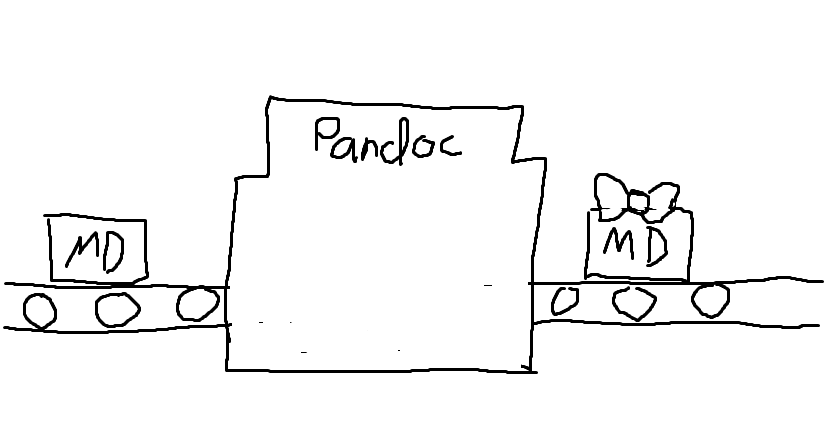
Process the markdown files with Pandoc
This step is kind of optional. It depends on how much you care about the exact formatting of your Markdown files. I wanted to do the following changes:
- To make it easier to navigate between posts in Obsidian, replace internal links with wikilinks
[[name of file|link title]]. Without this, the links would point at the blog’s old URL and open in browser. - Reorganize all headers so they consistently start from h1 for all posts. To keep the page structure consistent.
- Use
aliasesinstead oftitlefor the post title, so that it shows up correctly in Obsidian’s search - Use
publishedandcreatedfields for the post’s publish and creation date
These changes can be done easily using Pandoc, by writing a custom Lua filter. I looked for some other options, but came to the conclusion Pandoc would require the least amount of customization and coding to get the result I want. If needed, visit Pandoc’s how to install Pandoc guide.
You can find a suitable filter for this process here: https://gist.github.com/jhartikainen/da3111d829edded15e0b019705bcfe01
Note: If you want your site’s links to be converted, you need to modify line 9, so that it detects your site’s links instead of mine. If you want to format your frontmatter differently, modify the function starting from line 45.
You can find further information from the Pandoc manual page Pandoc Lua Filters
I ran the following shell command in the directory of the node tool:
find output -iname "*.md" -type f -exec sh -c 'pandoc "${0}" --wrap=preserve -s -f markdown+backtick_code_blocks+yaml_metadata_block -t markdown+backtick_code_blocks+yaml_metadata_block -o "${0}" --lua-filter ./filter.lua' {} \;This command finds all markdown files under the output folder, and calls Pandoc on them. Pandoc then replaces the files with its output. Note the --lua-filter ./filter.lua parameter which must match the name of the filter file.
On Windows you can probably achieve something similar via PowerShell. Pandoc itself should run the same.
Step 2: Import files into Obsidian
With Node, and optionally Pandoc stuff, out of the way, we can import the Markdown files into Obsidian. You can simply take the contents of the output directory, and drop them into your Obsidian vault. No other steps should be needed.
The level of success here depends on which WordPress plugins you’re using. Some plugins may output custom markup or other crud into the page content. If you run into a problem with this, you may need to modify the Node script, the Pandoc filter, or find some other way to fix the files.
A search and replace in the files might even work for simple cases: I had a plugin which added markup similar to \[pluginname some text\]. Removing it was easy with the following sed command:
find output -type f -name "*.md" -exec sed -i 's/\\\[pluginname.\+\]//g' {} \;Similar to the earlier Pandoc script, this finds all markdown files in output, and uses sed to run a regular expression search-and-replace on the contents.
Step 3: Creating a website from Obsidian files with Hakyll
This is where the more complicated stuff begins. While getting a site created with Hakyll is not any more difficult than with some of the alternatives, getting it to do the right thing with Obsidian-flavored markdown is another matter.
Here’s a list of things that need solving at this point:
- I want to have “drafts” - if I mark a file with
draft: truein the frontmatter, it should not get published - URLs to pages should match the old WordPress scheme
- I want pages for tags, like in WordPress
- I sometimes use Obsidian’s callouts, which is an Obsidian-specific feature
- Obsidian’s
[[wikilink]]style links should be automatically resolved to the correct URL - I want yearly and monthly archives, like in WordPress
The tools needed for this are a Haskell development environment, such as Stack, and Hakyll itself, for which I suggest reading the official Hakyll tutorials. You may also wish to peruse Hakyll’s reference documentation on Hackage.
How to skip generating pages from drafts
Let’s start from the simplest problem.
If I have a file with a frontmatter like this, I don’t want it published:
---
draft: true
---
We can solve this by using Hakyll’s matchMetadata function.
Most Hakyll rules look something like this:
match "some/path/*" $ do
  route idRoute
  etc
We’ll use matchMetadata instead of match. This allows us to read the metadata of the matched item, and choose whether to process it or not.
import qualified Data.Yaml as Yaml
import qualified Data.Aeson.KeyMap as KM

-- First we need a function to check the metadata:
notDraft :: Yaml.Object -> Bool
notDraft = not . maybe False toBool . KM.lookup "draft"
  where
    toBool (Yaml.Bool v) = v
    toBool _ = False

-- And we can use it like so:
matchMetadata "some/path/*" notDraft $ do
  route idRoute
  etc
With this, Hakyll will no longer publish files which have draft: true set.
There is a possible Hakyll bug here
If you have a page which is not a draft and publish it, and later decide to make it into a draft, Hakyll doesn’t correctly detect this. You will need to run a full site rebuild for the file to be deleted from the output directory.
This should mostly not be a problem though.
How to make nice URLs that match the WordPress URLs
A typical URL in the WordPress blog looks something like this:
https://codeutopia.net/blog/year/month/day/name-of-post/The problem is twofold:
- Since Hakyll generates HTML files, they tend to end up being called
something.html - The post folders in my Obsidian folders are
year/month/without a day
My initial thought on solving the something.html problem was to use a .htaccess file with Apache's RewriteModule. Of course, this had been my go-to for many years solving similar issues with PHP-based sites. But how do you make Hakyll generate a htaccess file with the correct rules? And how do you make Hakyll then generate the correct links without the .html extension?
Turns out there’s a much simpler solution: You can (ab)use the behavior of most HTTP servers, where a path like /some/path/ serves the file /some/path/index.html. Combine this with a Hakyll helper which removes index.html from links, and that’s all you need.
I found out about this approach from an article called Clean URLs with Hakyll. Since my approach is identical, you can read about it from the link.
The second problem is how do you add the day into the URL? The super simple fix would be to put the files into that kind of folder structure in Obsidian. But I don’t want to have one extra folder for every single file. So, we have use a more complicated (but also more interesting) approach: We need to parse the post’s creation date from the frontmatter, and route the Hakyll output based on that.
-- Route content based on its publish date, into a path like
-- `blog/year/month/day/name-of-page/index.html`.
-- Since the filename contains spaces, this also substitutes a -
postRoute :: Routes
postRoute = metadataRoute $ \meta ->
    customRoute . createPostRoute . fromJust $ lookupDate "published" meta
  where
    createPostRoute pubDate ident = "blog" </> formatTime defaultTimeLocale "%Y/%m/%d" pubDate </> slug </> "index.html"
      where
        slug = replaceAll " " (const "-") . takeBaseName . toFilePath $ ident

-- The blogposts in this case exist in a path similar to
-- `posts/year/month/name of page.md`
matchMetadata "posts/*/*/*.md" notDraft $ do
  route $ postRoute
This uses fromJust, which will cause a runtime error if the published field is missing. In this case I found that acceptable - if the field is missing, then there’s a problem with the markdown file, and a crash will point that out.
Creating tags pages
The old WordPress blog had pages like blog/tag/name-of-tag which lists all posts with the tag in question. Helpfully, Hakyll has functions to deal with tags out of the box - they just aren’t documented very clearly.
Similarly helpfully, there is another article covering the usage of Hakyll’s tag functionality: Add tags to your Hakyll blog
Parsing Obsidian callouts using Pandoc
I mentioned earlier that Hakyll turned out to be a good choice because of Pandoc, which also happens to be written in Haskell. This makes the integration between the two excellent. Adding custom parsing is very easy thanks to the native Haskell library and Pandoc’s powerful API.
To do the necessary parsing and transformation, we can use Hakyll’s Pandoc compiler functions:
pandocOpts :: ReaderOptions
pandocOpts =
    let exts = enableExtension Ext_wikilinks_title_after_pipe $ readerExtensions defaultHakyllReaderOptions
    in defaultHakyllReaderOptions { readerExtensions = exts }

pandocObsidianCompiler :: Compiler (Item String)
pandocObsidianCompiler = pandocCompilerWithTransform defaultHakyllReaderOptions defaultHakyllWriterOptions parseCallouts
To support parsing wikilinks, we need to first enable the Ext_wikilinks_title_after_pipe extension. Then, we’ll declare a function that calls Hakyll’s Pandoc compiler with the modified options and a custom callout parsing function - we’ll look at how parseCallouts is defined below.
Obsidian callouts look like this:
> [!type] title
> possible content here
Pandoc parses this as a plain BlockQuote which just happens to have [!type]... as part of its contents. We can’t really do any nice formatting of that in CSS. So, we need to parse the callout type, title and contents (if any). We can represent this as the following Haskell types:
import Text.Pandoc.Definition

data CalloutType
  = Abstract
  | Info
  | Todo
  | Tip
  | Success
  | Question
  | Warning
  | Failure
  | Danger
  | Bug
  | Example
  | Quote
  | Note
  deriving (Show, Read)

data Callout = Callout
    { calloutType :: CalloutType
    , calloutTitle :: [Inline]
    , calloutContents :: [Block]
    }
The CalloutType represents Obsidian’s various callouts. A custom callout type could be added, but I’m not using those. The Callout data type represents the whole: The type, title (a list of inline elements) and the contents (a list of block-level elements).
Before we go into the callout parser itself, here are two helpers: One for parsing the callout type from a string, and another that formats the callout as <div>s:
import Text.Read
import qualified Data.Text as T

parseCalloutTag :: String -> Maybe CalloutType
parseCalloutTag = readName . takeWhile (/= ']') . drop 2
    where
        readName (s : rest) = readMaybe (toUpper s : rest)
        readName _ = Nothing

-- This creates the following kind of structure from the callout:
-- <div class="callout callout-calloutTypeHere">
--   <p>Callout title here</p>
--   <div class="callout-content">Callout content here</div>
-- </div>
calloutToDiv :: Callout -> Block
calloutToDiv c = Div ("", ["callout", "callout-" `mappend` (T.toLower . T.pack . show . calloutType $ c)], [])
                     [ Para (calloutTitle c)
                     , Div ("", ["callout-content"], []) (calloutContents c)
                     ]
The Pandoc AST structure for a callout looks like this:
[Para
  [ Str "[!info]"
  , Space
  , Str "A"
  , Space
  , Str "note"
  , Space
  , Str "from"
  , Space
  , Str "the"
  , Space"
  , Str "future""
  , SoftBreak"
  , Str "I""
  , Space"
  , Str "originally""
  , Space,Str "wrote

  ...
We get a list of block-level elements, the first of which is a paragraph. The Para contains the initial inline content within the callout: A string containing the type tag, followed by the title delimited by a SoftBreak. Depending on the callout structure, you might have additional block-level elements after the Para.
Here’s the parseCallouts function. It takes a Pandoc value, parses out the above callout AST, and replaces them with divs using the functions from the previous code example:
parseCallouts :: Pandoc -> Pandoc
parseCallouts p = walk fixCallouts p
    where
        fixCallouts b@(BlockQuote contents) =
            maybe b calloutToDiv (tryParseCallout contents)
        fixCallouts b = b

        tryParseCallout :: [Block] -> Maybe Callout
        tryParseCallout (init : otherBlocks) = do
            (ctype, rest) <- parseType init
            let (title, other) = break isSoftBreak rest
            -- Strip spaces from front of title, and drop
            -- the SoftBreak from the other content
            return $ Callout
                ctype
                (dropWhile isSpace title)
                ((Para . drop 1 $ other) : otherBlocks)

        tryParseCallout _ = Nothing

        parseType :: Block -> Maybe (CalloutType, [Inline])
        parseType b = case b of
            Para (Str t : rest) -> flip (,) rest <$> (parseCalloutTag . T.unpack $ t)
            _ -> Nothing

        isSoftBreak SoftBreak = True
        isSoftBreak _ = False
        isSpace Space = True
        isSpace _ = False
With this, we can now use the pandocObsidianCompiler function within the rules, such as the one we defined earlier:
matchMetadata "posts/*/*/*.md" notDraft $ do
  route $ postRoute
  compile $ pandocObsidianCompiler
     ...
How to resolve Obsidian wikilinks into files?
The trouble with Wikilinks is that Obsidian allows you to refer to other files by their filename, without a path. To create the correct link, we have to resolve the filename into the path where Hakyll has put it.
I took me three tries to get it working well. My first solution created a mapping of page title to page URL when a page was generated. This allowed the lookups, but it was slow because it was regenerated for every single page.
My second solution moved creating the mapping into a separate Hakyll compile step, which saved the mapping as an Item into Hakyll’s store. This meant it was only generated once. But the problem with this was if you modified any of the pages, Hakyll would regenerate every other page too. This was because Hakyll ended up creating a dependency between all pages as a result of the mapping compilation and how the mapping was used within compiling the pages.
My third and final solution fixed all of the above problems. I figured that instead of creating a mapping of file to URL, I could create a mapping of file to Identifier, and only perform the final route lookup during the compilation of each individual page. This way we avoid creating all the dependencies between pages, allowing Hakyll to rebuild things in a smarter way.
type ContentLookup = T.Text -> Compiler (Maybe FilePath)
makeContentLookup :: (MonadMetadata m) => Pattern -> Pattern -> m ContentLookup
makeContentLookup mdPattern assetPattern = do
    pages <- getMatches mdPattern
    assets <- getMatches assetPattern

    mappings <- (++) <$> forM pages (mkMapping takeBaseName)
                     <*> forM assets (mkMapping takeFileName)

    return $ \t -> case lookup (T.toLower t) mappings of
        Just ident -> getRoute ident
        _ -> pure Nothing
  where
    mkMapping f ident = do
        let name = f . toFilePath $ ident
        return (T.toLower . T.pack $ name, ident)
This function takes in two patterns, and returns a lookup function. The first pattern is used to create a map of page filenames to identifiers. The second pattern is used for images. This uses two, because page wikilinks usually are in format of [[file name without extension]], while image wikilinks require the file extension like ![[some image.jpg]].
This approach is slightly naive
It’s valid to use the .md extension in a page link, and the links could also have a relative path, but I’m not using either of those at least currently. The challenge with relative paths is the paths used in the Obsidian vault might not match the paths the files get routed to.
You will need to modify the logic if you need file extension and relative path support.
Next, here’s a Pandoc transformation function which fixes wikilink URLs:
processWikilinks :: ContentLookup -> Pandoc -> Compiler Pandoc
processWikilinks clookup a = walkM fixLink a
  where
    fixLink :: Inline -> Compiler Inline
    fixLink inline = case inline of
        Link a inlines (url, title)
            | hasClass "wikilink" a -> do
                route <- clookup url
                pure $ maybe (Str . stringify $ inlines)
                    (\u -> Link a inlines (T.pack . toUrl $ u, title))
                    route

        Image attr inlines (url, title)
            | hasClass "wikilink" attr -> do
                imageUrl <- clookup url
                pure $ Image attr inlines (T.pack . toUrl . fromJust $ imageUrl, title)
            -- If the image didn't match anything in the mapping, then
            -- we'll just assume it's a relative path and a naive "../../" should fix it
            | isLocal (T.unpack url) ->
                pure $ Image attr inlines ((T.append "../../" url), title)

        _ -> pure inline

hasClass :: T.Text -> Attr -> Bool
hasClass className (_, classes, _) = className `elem` classes
Pandoc uses a “wikilink” class that makes it easy to identify them. This function does three things:
- For pages, it tries to look up the page’s route using the
ContentLookupfunction. If it can’t find one, it replaces the link with a regular text string. I might sometimes want to link other pages from my vault that aren’t included in the website build, so this allows me to do that and keep the page clean. - For wikilink images, it looks up the url. Note that it uses
fromJust- if the image link is incorrect, this will crash the site build. I would like to know if my links are bad, so this is acceptable for me. - For non-wikilink images, it prepends
../../to the URL for relative URLs. This is because of the URL pattern used in the blogposts and where their assets go from the WordPress export. If your URLs are different you may need to tweak this.
We need to modify the earlier pandoc compilation function for this slightly:
pandocObsidianCompiler :: ContentLookup -> Compiler (Item String)
pandocObsidianCompiler clookup = pandocCompilerWithTransformM pandocOpts defaultHakyllWriterOptions processObsidianMarkdown
    where
        processObsidianMarkdown p = (return . parseCallouts $ p) >>= processWikilinks clookup
Note that we’re now using pandocCompilerWithTransformM with the M-suffix. This monadic variant lets us run processWikilinks in the Compiler monad as required for the content lookup.
Within the Hakyll rules, we need to do the following:
contentLookup <- makeContentLookup "posts/*/*/*.md" "posts/**/attachments/*"
matchMetadata "posts/*/*/*.md" notDraft $ do
  route $ postRoute
  compile $ pandocObsidianCompiler contentLookup
     ...
By doing this, the lookup function can resolve content from posts/year/month/filename.md and images from posts/year/month/attachments/ or other similar structures.
Creating yearly and monthly archive pages
To create pages showing all the posts for a particular year and all the posts for a month, we can utilize a similar approach as with tags. We’ll set up a function that builds the necessary data structures, and another which is used in the rules monad.
Let’s first look at the functions and then we’ll see how to put them together.
data ArchiveIndexes = ArchiveIndexes
    { indexMap :: M.Map Year (M.Map MonthOfYear [Identifier])
    , indexDependency :: Dependency
    }

buildArchiveIndexes :: MonadMetadata m => Pattern -> m ArchiveIndexes
buildArchiveIndexes pattern = do
    idents <- getMatches pattern
    map <- foldM toYearMonth M.empty idents
    return $ ArchiveIndexes map $ metadataDependency $ PatternDependency pattern (S.fromList idents)
  where
    toYearMonth ymMap ident = do
        meta <- getMetadata ident
        return $ case lookupDate "published" meta of
          Just date -> do
              let (y, m, _) = toGregorian  . utctDay $ date
                  monthMap = fromMaybe M.empty (M.lookup y ymMap)
              M.insert y (M.insertWith (++) m [ident] monthMap) ymMap
          _ -> ymMap
This function builds a map of all the year/month contents. It also includes dependency information for the content we’re using for the indexes. We’ll use it in the next function to ensure that if any of the pages update, Hakyll can detect the relevant archive pages must also update.
archiveIndexesRules :: ArchiveIndexes
                    -> ((Year, Maybe MonthOfYear) -> Identifier)
                    -> ((Year, Maybe MonthOfYear) -> Pattern -> Rules ())
                    -> Rules ()
archiveIndexesRules archiveIndexes makeId rules = do
    forM_ yearEntries $ \(year, idents) ->
        rulesExtraDependencies [indexDependency archiveIndexes] $
            create [makeId (year, Nothing)] $ rules (year, Nothing) (fromList idents)

    forM_ monthEntries $ \((year, month), idents) ->
        rulesExtraDependencies [indexDependency archiveIndexes] $
            create [makeId (year, Just month)] $ rules (year, Just month) (fromList idents)
  where
    yearEntries = M.toList . M.map (concat . M.elems) $ indexMap archiveIndexes
    monthEntries = join . map toYearMonth . M.toList $ indexMap archiveIndexes
    toYearMonth (year, monthMap) = map (\(month, idents) -> ((year, month), idents)) $ M.toList monthMap
This function takes the archive indexes data structure, and creates pages from it, using two functions provided by the caller. This is similar in concept to Hakyll’s tagsRules function.
The caller of this function must provide two functions:
- A function which creates an Identifier for a given archive index page
- A function which has the remaining rules, such as how to compile the archive index page
Both functions are given a (Year, Maybe MonthOfYear) as a parameter, where the month of year value is set to Nothing when creating a year-specific index. This way, we can handle the year and month indexes differently from each other. Alternatively, archiveIndexesRules could take individual parameters to handle the year and month indexes, but I felt using (Year, Maybe MonthOfYear) was more straightforward. The second function is also given a Pattern, which can be used to find the relevant pages to display in the index.
Here’s how you would use the functions within the Rules monad:
archiveIndexes <- buildArchiveIndexes "posts/*/*/*.md"
let makeId = \(year, mMonth) -> case mMonth of
		Just m -> fromCaptures "blog/*/*/index.html" [show year, printf "%02d" m]
		_      -> fromCapture "blog/*/index.html" $ show year

archiveIndexesRules archiveIndexes makeId $ \(year, mMonth) pattern -> do
    route idRoute
    compilePage $ do
        posts <- recentFirst =<< loadAll pattern
        let title = case mMonth of
                        Just m -> "Posts from " ++ (show year) ++ "-" ++ (show m)
                        _      -> "Posts from " ++ (show year)
            ctx = constField "title" title  `mappend`
                  listField "posts" (postCtx tags) (return posts) `mappend`
                  defaultContext
        makeItem ""
          >>= loadAndApplyTemplate "templates/archive.html" ctx
          >>= loadAndApplyTemplate "templates/default.html" ctx
We first use buildArchiveIndexes to create the data structure from the post markdown files. We create a makeId function, which creates the identifiers for each index page, either in format of blog/year/index.html for year-indexes, or blog/year/month/index.html for months.
This is then put together using the archiveIndexesRules function. The contents of that is generally same as you could expect in any match handler in Hakyll, with the exception of the part where we choose the page title based on whether we are showing a year or a month index.
Other technical considerations
Couple other things worth considering:
- Depending on how you use markdown in your Obsidian notes, you may want to enable the extension
Ext_lists_without_preceding_blankline. Without this, you need to have a blank line before a list, or it will not format correctly - Also depending on how you use Markdown, maybe disable the extension
Ext_blank_before_header. This extension is enabled by default, and it makes Hakyll output headers without an empty line before them as regular text. - If you use level 1 headers in markdown, Hakyll translates them into
<h1>tags. You can use a transformer function to increment the header levels by one to get<h2>tags instead, which may result in a semantically better document structure.
incrementHeadings :: Pandoc -> Pandoc
incrementHeadings = walk fixHeading
   where
      fixHeading (Header level attr content) = Header (level + 1) attr content
      fixHeading b = b
You can plug this into pandocCompilerWithTransformM like the parseCallouts function shown earlier.

The end result
The result of all that is what you see here. This site is the result, at least as of writing this post - maybe in another 10 years it’ll be different again?
I’m quite happy with it. With WordPress, I had previously been mostly satisfied with how it worked - content was easy to add and it was fairly “smooth” usability wise. If the tools I use get in my way I won't use them, and WordPress was reasonably frictionless. But any changes to the way it worked, or the design of the pages, was always a pain so I ended up never doing much.
I’ve used Obsidian for a while now, and it fits the way I work perfectly. There’s very little friction between writing, linking, searching and all the other things within it, which makes it an ideal environment for writing content like this.
Hakyll was reasonably easy to work with after a few initial troubles, and it solves the changes-problem - There’s nothing complicated about the templates (unlike WP’s) or the site generation systems (again unlike WP), so if I want to try something, it hopefully won’t mean getting frustrated. Plus it’s Haskell which makes it more interesting to me than PHP.
What makes Hakyll especially interesting is that if I wanted to do something more complicated, that’s also possible. For example, if I wanted to do some kind of complicated HTML/CSS/JS stuff for a post, I could drop a regular HTML file into the posts folder in Obsidian. With some minor modifications, Hakyll can pick it up and display it along the other blogposts. I don’t even want to think about how complicated that might be in WordPress.
The one thing missing currently is comments. I started with WordPress’ comments system, and later switched to Disqus. It can be used with a static site, but it’s been displaying ads (and apparently of really iffy variety sometimes) and I don’t want that. Since I’m just doing this for fun I’m not interested in paying to get rid of the ads, and I’m not sure about the privacy implications either. So for now, there’s a box below each post inviting you to just send me a mail directly.
Comments or questions?
If you have any comments or questions about this post, feel free to email me to jani@codeutopia.net, or use any of the other methods on the contact page.